⚡ Phase 3: JavaScript Programming
Real Code - Professional Programming!
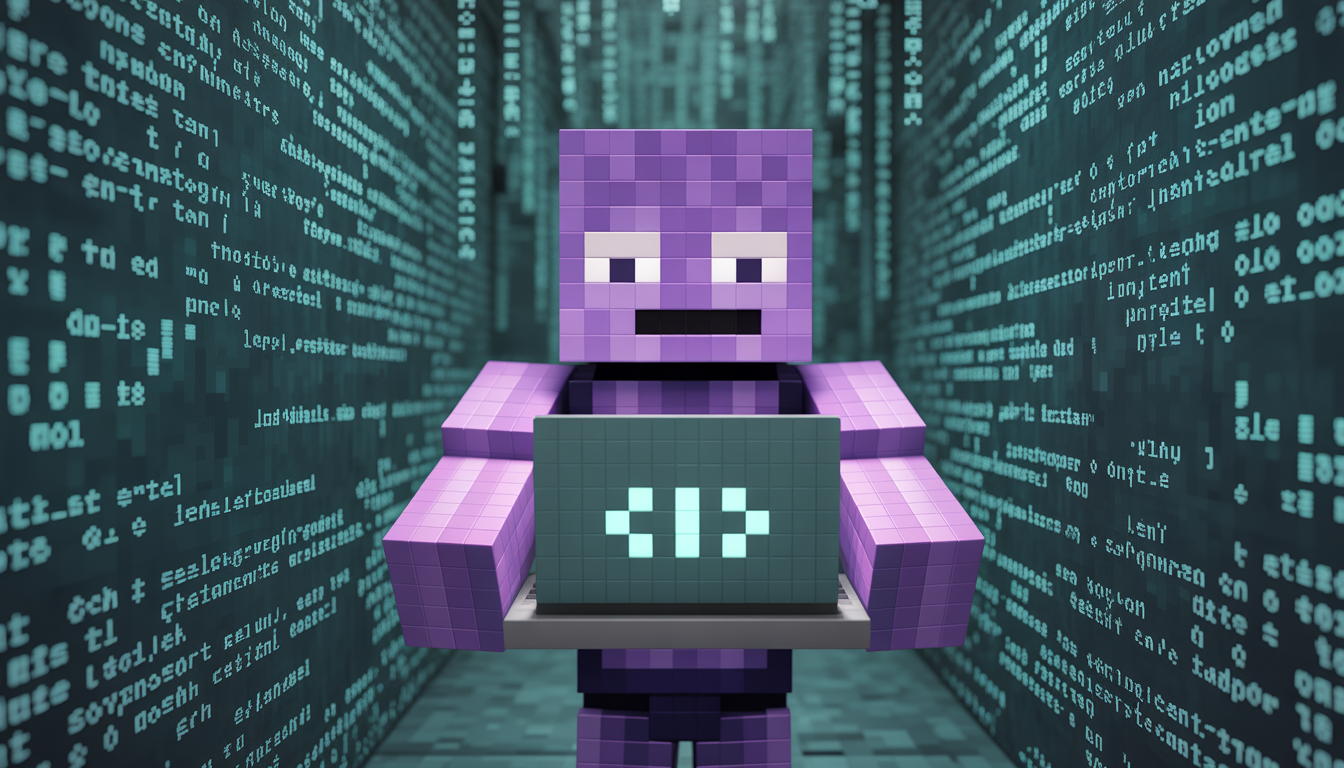
🎓 Welcome to Professional Development!
Congratulations on making it to Phase 3! You've mastered the basics with Command Blocks and learned visual programming with MakeCode. Now it's time to code like a professional developer!
🚀 You're Ready to Graduate!
In this phase, you'll:
- ✅ Use Visual Studio Code - the same tool millions of professional developers use
- ✅ Write JavaScript code from scratch
- ✅ Create behavior packs that run on your family's Minecraft server
- ✅ Learn skills that work for websites, apps, games, and more
- ✅ Build a foundation for a future career in programming
Why Visual Studio Code?
- Industry Standard: Used by developers at Google, Microsoft, Meta, and millions of others
- Free & Powerful: Professional features without the cost
- Universal: Works for JavaScript, Python, HTML, CSS, and 100+ languages
- Career Skill: Knowing VS Code is valuable for any programming job
- Uncle-Approved: Your uncle uses this every day for professional development!
Setting Up Visual Studio Code
Step 1: Install Visual Studio Code
- Go to code.visualstudio.com
- Click "Download for Windows" (or your operating system)
- Run the installer (VSCodeUserSetup-x64-*.exe)
- Follow the installation wizard:
- Accept the license agreement
- Choose installation location (default is fine)
- ✅ Check: "Add to PATH" (important!)
- ✅ Check: "Create a desktop icon" (convenient)
- ✅ Check: "Register Code as an editor for supported file types"
- Click "Install" and wait for it to complete
- Click "Finish" and launch VS Code!
Step 2: Install Essential Extensions
Extensions add special features to VS Code. Let's install the ones for Minecraft development:
- Open VS Code
- Click the Extensions icon in the left sidebar (or press
Ctrl+Shift+X) - Search for and install these extensions:
Required Extensions:
- "Blockception's Minecraft Bedrock Development"
- Search: "Blockception Minecraft"
- Publisher: Blockception
- Click "Install"
- What it does: Autocomplete, syntax highlighting, validation for Minecraft code
- "JavaScript (ES6) code snippets"
- Search: "JavaScript ES6 snippets"
- Publisher: charalampos karypidis
- Click "Install"
- What it does: Quick shortcuts for common JavaScript code
Recommended Extensions (Optional but Helpful):
- "Prettier - Code formatter" - Makes your code look professional
- "Error Lens" - Shows errors inline as you type
- "Material Icon Theme" - Pretty file icons
Step 3: Create Your First Behavior Pack
Behavior packs are how we add custom JavaScript to Minecraft. Let's create one!
3.1: Find Your Minecraft Folder
First, we need to know where Minecraft stores behavior packs:
How to get there:
- Press
Windows Key + Rto open Run dialog - Paste the path above
- Press Enter
- You're in the behavior packs folder!
3.2: Create Your Pack Folder
- In the development_behavior_packs folder, create a new folder
- Name it:
MyFirstPack(no spaces!) - Open VS Code
- Click "File → Open Folder"
- Navigate to and open your
MyFirstPackfolder
3.3: Create the Pack Structure
In VS Code, create these files and folders:
MyFirstPack/
├── manifest.json
├── pack_icon.png
└── scripts/
    └── main.js
To create files in VS Code:
- Right-click in the Explorer panel (left side)
- Choose "New File" or "New Folder"
- Type the name and press Enter
3.4: Create manifest.json
This file tells Minecraft about your pack. Copy this code into manifest.json:
How to generate UUIDs:
- Go to uuidgenerator.net
- Click "Generate UUID"
- Copy and paste into manifest.json
- Generate 3 different UUIDs (one for each placeholder)
3.5: Create main.js
This is where your JavaScript code goes! Create scripts/main.js with this starter code:
Step 4: Test Your Pack in Minecraft
- Open Minecraft Bedrock Edition
- Create a new world (or open existing)
- Before creating, click "Behavior Packs"
- You should see "My First Behavior Pack" in "Available" packs
- Click it and then click "Activate"
- Make sure "Experiments → Beta APIs" is turned ON
- Make sure "Cheats" are enabled
- Create/open the world
- Type
!helloin chat - you should see your message!
JavaScript Basics
Comparing Blocks to JavaScript
Let's see how MakeCode blocks translate to JavaScript code:
Example 1: Placing a Block
In Blocks: You drag a "place stone at position" block
In JavaScript:
Example 2: On Player Walk Event
In Blocks: You use the "on player walk" event block
In JavaScript:
player.onTravelled- The event (like the event block)TravelMethod.Walk- What kind of travel (walking)function() { }- The code to run (what goes inside the block)//- Comments (notes to yourself, ignored by computer)
Your First JavaScript Program
Project: Rainbow Trail (JavaScript Version)
Remember the rainbow trail from Phase 2? Let's write it in JavaScript!
Make It Better: Random Colors!
let- Creates a variable (like making a variable in MakeCode)=- Assigns a value to a variablerandint(0, 5)- Random number between 0 and 5if/else if/else- Making decisions (conditionals)==- Checks if two things are equal
JavaScript Fundamentals
1. Variables
Variables store information. Think of them as labeled boxes:
- Numbers: 0, 42, -5, 3.14
- Strings: "Hello", 'world' (text in quotes)
- Booleans: true or false
- Arrays: [1, 2, 3, 4] (lists of things)
2. Functions
Functions are reusable blocks of code:
3. Loops
Loops repeat code multiple times:
let i = 0- Start at 0i < 10- Keep going while i is less than 10i++- Add 1 to i each time
4. Conditionals (If/Else)
Make decisions in your code:
5. Arrays (Lists)
Store multiple values in one variable:
Minecraft-Specific JavaScript
Events
React to things happening in the game:
Placing & Breaking Blocks
Positions
Spawning Mobs
Practical Projects
Project 1: Building Assistant
Project 2: Treasure Hunt Game
Project 3: Super Powers
Advanced Concepts
Object-Oriented Programming
Create reusable "templates" for things:
Error Handling
Handle errors gracefully:
Timers and Delays
Best Practices
1. Use Meaningful Names
2. Add Comments
3. Break Large Functions into Smaller Ones
4. Test Small Pieces
Don't write 100 lines and then test. Test after every 5-10 lines!
5. Keep It Simple
Start simple, then add complexity. A working simple version is better than a broken complex one!
Mastering VS Code
Now that you're coding in VS Code, let's learn the professional shortcuts and features!
Essential Keyboard Shortcuts
⌨️ Must-Know Shortcuts:
| Action | Shortcut | What it does |
|---|---|---|
| Quick Open | Ctrl+P |
Quickly open any file by name |
| Command Palette | Ctrl+Shift+P |
Access ALL VS Code commands |
| Save File | Ctrl+S |
Save your work (DO THIS OFTEN!) |
| Find | Ctrl+F |
Search in current file |
| Find & Replace | Ctrl+H |
Find and replace text |
| Comment Line | Ctrl+/ |
Turn line into comment (or back) |
| Duplicate Line | Shift+Alt+Down |
Copy current line below |
| Move Line | Alt+Up/Down |
Move line up or down |
| Multi-Cursor | Alt+Click |
Edit multiple places at once! |
| Format Document | Shift+Alt+F |
Auto-format your code (make it pretty!) |
| Terminal | Ctrl+` |
Open integrated terminal |
| Undo | Ctrl+Z |
Undo last change (lifesaver!) |
| Redo | Ctrl+Y |
Redo undone change |
Pro Features to Explore
1. IntelliSense (Autocomplete)
As you type, VS Code suggests what you might want to write. Press Tab or Enter to accept suggestions!
2. Error Highlighting
Red squiggly lines? That's VS Code telling you there's a problem. Hover over them to see what's wrong!
3. Integrated Terminal
Press Ctrl+` to open a terminal right inside VS Code. You can run commands without leaving the editor!
4. Git Integration
The source control icon (left sidebar) lets you track your code changes. Ask your uncle to help you set up Git!
5. Extensions
We installed Minecraft extensions, but there are thousands more! Browse them in the Extensions panel.
VS Code Tips for Success
Ctrl+S frequently! Auto-save is nice but manual saves ensure you don't lose work.
Shift+Alt+F to make your code beautiful and properly indented.
Ctrl+F to search for text. Way faster than scrolling!
Ctrl+/ to add comments. Future you will thank present you!
Ctrl+Shift+P and type what you want to do. VS Code will find it!
Deploying to Your Family Server
Once you've created an awesome behavior pack, you can deploy it to your uncle's Minecraft Bedrock server!
- Find your behavior pack folder (the one with manifest.json)
- Zip the entire folder
- Give the .zip file to your uncle
- He'll place it on the server in the behavior_packs folder
- Everyone on the server can use your code!
Debugging JavaScript
Common Errors:
Debugging Tips:
- Use
player.say()to print values and see what's happening - Check the JavaScript console in MakeCode for error messages
- Comment out code to isolate problems
- Check spelling and capitalization - JavaScript is case-sensitive!
- Make sure brackets and parentheses are balanced
Going Further
Learning Resources:
- MakeCode Documentation: minecraft.makecode.com
- JavaScript Tutorials: Codecademy JavaScript Course
- Bedrock Scripting API: Microsoft Learn - Minecraft
Next Steps:
- Master JavaScript in MakeCode
- Learn about Behavior Packs and Add-ons
- Explore the full Bedrock Scripting API
- Build something awesome and share it!
Other Programming Languages:
Once you're comfortable with JavaScript, you can easily learn:
- Python: Great for data science, AI, web development
- Java: Used for Android apps, enterprise software
- C#: Used for Unity game development, Windows apps
- HTML/CSS: Build websites
The concepts you learned here apply to ALL programming languages!
🎓 Congratulations - You're a Professional Developer!
🎉 You Did It!
You've completed an incredible journey:
- ✅ Phase 1: Learned programming basics with Command Blocks
- ✅ Phase 2: Mastered visual programming with MakeCode
- ✅ Phase 3: Graduated to professional development with VS Code
You're using the same tools and languages that professional developers at Google, Microsoft, and Meta use every single day!
What You've Accomplished
Professional Skills You Now Have:
- ✅ JavaScript Programming: One of the world's most popular languages
- ✅ VS Code Proficiency: The #1 code editor used by professionals
- ✅ Problem Solving: Breaking big problems into small steps
- ✅ Debugging: Finding and fixing errors systematically
- ✅ File Management: Organizing projects professionally
- ✅ API Usage: Working with the Minecraft Bedrock API
- ✅ Version Control Readiness: Ready to learn Git
- ✅ Server Deployment: Publishing code for others to use
Your Next Adventure
The programming world is now open to you! Here's what you can explore next:
🎮 More Game Development:
- Unity + C#: Create your own 3D games
- Godot: Another game engine (uses similar concepts)
- Roblox Studio: Create Roblox games with Lua
🌐 Web Development:
- HTML/CSS: Build beautiful websites
- React: Build interactive web apps (uses JavaScript!)
- Node.js: Build servers with JavaScript
🤖 AI & Data Science:
- Python: The language of AI and machine learning
- Claude (AI Coding): Code WITH AI assistance (like having a programming buddy!)
📱 Mobile Apps:
- React Native: Build phone apps with JavaScript
- Flutter: Build iOS and Android apps
Share Your Success!
Ideas:
- A custom minigame everyone can play
- Helpful commands for the server
- Your own creative world mechanics
- Something NO ONE has thought of before!
A Message from Your Uncle
Hey! If you've made it this far, I'm incredibly proud of you! 🎉
You're not just playing Minecraft anymore - you're creating it. You're thinking like a developer. You're solving problems. You're building things.
This is exactly how I started my career as a professional developer. And now you have these same skills!
Keep building, keep learning, and never be afraid to try new things. I'm always here to help!
- Uncle Stephen 💻